Skip to content
scalar help center
  • Browse articles
    MULTI_LETTERS_1024px_CYAN
    User documentation

    Provides instructions, guidance and information

    TECHNCAL_INFORMATION_1024px_CYAN
    Hardware installation guides

    Guides the installer through the hardware installation

    Developer documentation

    Serves a crucial resource for software developers

Get support
  • Logout

Login
  • Select Region and Language

    Europe, Middle-East and Africa

ZF

Search

User Documentation

  • Cargo transport
    • Welcome to SCALAR
    • Getting started
    • Home
      • Fleet view
      • Map overview
      • Alarms
      • Messaging
      • Trips
      • Route planner
      • Tachograph
      • Infringements
      • Duty time
      • Brake performance
      • Reefer insights
      • Eco performance
      • Asset insights
      • View and manage driver documentation
      • Fuel drops
      • Data sharing – manage sessions
      • Manufacturer reports
      • Reports
      • Map
        • Monitor assets
        • Monitor drivers
        • Manage and monitor places
      • Reports
        • Custom reports
    • Administrator
      • Capability Configurator
      • User management
      • Unit management
      • Asset management
      • Resource combinations
      • Place management
      • Group management
      • Team management
      • Integrator management
      • Settings management
      • Configure alarm rules
      • Driver management
      • Configure tachograph settings
      • Activities
      • Define document types and configure profiles
      • Data sharing – agreement and contract creation
      • Subscription renewal of telematic services
      • Audit logs
      • Impersonation
    • Spot subcontracting
      • Spot subcontracting – Getting started
      • Integrator – Datahub API
      • Driver – Webform
    • Account
      • Notifications
      • Profile management
    • SCALAR Cargo App for Drivers
      • SCALAR Cargo App for Drivers
      • Driver login methods
      • Activities
      • Messaging
      • Schedule
      • Upload documents
      • Service time
      • Settings
    • Datahub
      • Rest API
      • Webhook developer metrics
      • Raw Message Streaming (RMS)
      • Datahub subscription
      • Datacoins
    • Workshop
      • Workshop
      • SCALAR EVO Guard
      • SCALAR EVO Pulse
      • SCALAR EVO Flow / Touch / Flow (v2)
    • Customer portal
      • Unit subscription
      • View subscription information
      • Invoices
      • Manage child organizations
    • Support
      • Reach out to Customer Support
      • My repairs
    • Service
      • OTA manager
    • Data privacy
      • Data Privacy
    • ASK AI
      • ASK AI: AI-Driven Migration Assistant
  • Passenger transport
    • Basic concepts
    • Setup organization
    • What is Passenger transport?
    • Configure transportation service
    • Plan your operations in SCALAR
    • Configure transportation service
      • Manage your transportation services in SCALAR
      • Customization of the Traveler App
      • Publication of new Traveler App versions to the stores
      • Traveler App and Driver App release process
    • Operating the transportation service
      • Monitor your operations in SCALAR Dispatching view
      • Your step-by-step guide for handling operational incidents
      • Place a booking on behalf of a traveler
      • Communicate with your travelers
      • Operations Support Flow
    • Release notes
      • Traveler App Android
      • Traveler App iOS
      • Driver App
      • Web App
  • Software Update Management System (SUMS)
    • Welcome
    • Getting started with SUMS
    • Welcome and get started with SUMS
    • SUMS dashboard
    • SUMS viewer
    • Update vehicle information
    • Software package distribution through Workshop
    • Software package download during EOL production
    • Software package management   
    • Vehicle type management
    • Vehicle management
    • Glossary: Software Update Management System
  • Public Key Infrastructure
    • SCALAR Public Key Infrastructure SaaS Solution

Hardware Installation Guides

  • SCALAR EVO Touch
  • SCALAR EVO Cast
  • SCALAR EVO Flow
  • SCALAR EVO Guard
  • TrailerCast with Battery
  • SCALAR EVO Pulse
  • Home
  • Docs
  • EULA, Terms and conditions, and Data Protection Agreement
View Categories

EULA, Terms and conditions, and Data Protection Agreement

Updated on August 17, 2026
URL copied to clipboard!

SCALAR End User Agreement (EULA) and consent overview #

In compliance with legal, data protection, and data privacy regulations related to GDPR, SCALAR users must explicitly provide consent to the terms and conditions and related policies during the onboarding process (for new users) or while signing in to the SCALAR platform (for existing users).

NOTE:

An account owner must review and accept the following legal documents:

  • End User License Agreement (EULA)
  • Terms and Conditions (T&C)
  • Data Protection Agreement (DPA)

All other users are required to review and accept only EULA.

SCALAR users must provide consent before accessing the platform. Existing users must provide consent through a pop-up window while signing in. New users must provide consent during the on-boarding process.

This is a one-time activity until policy the policy will be revised.

Provide consent #

This section describes the procedures for providing consent under different scenarios, applicable to account owners as well as all other users. However, regular users must provide consent for EULA only.

For existing users #

For users who have already been on-boarded to SCALAR, they can review and accept the policies while signing in to SCALAR.

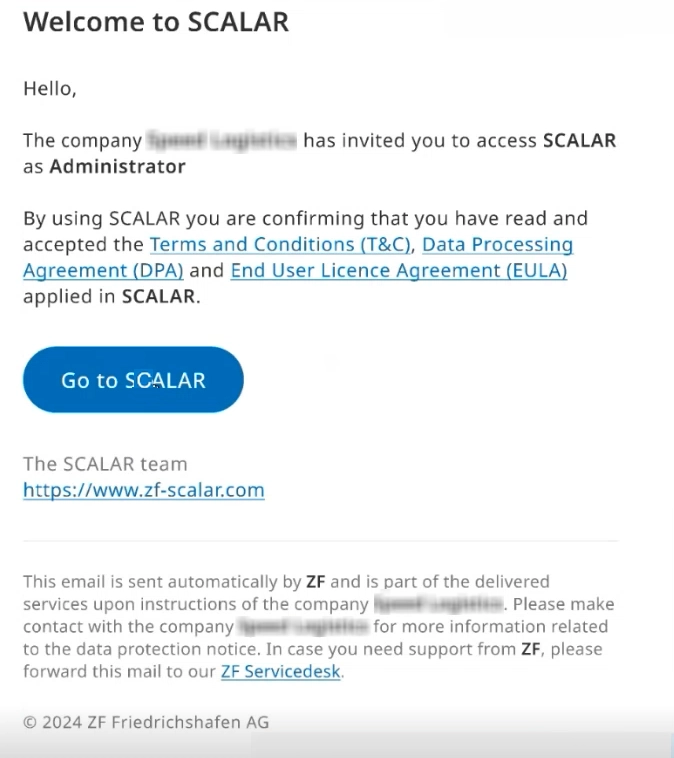
  1. From the welcome email, click Go to SCALAR.


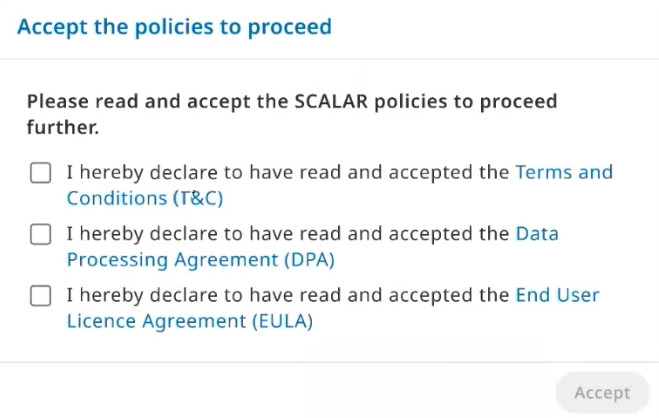
  2. The Sign in page is displayed. Sign in to SCALAR using your credentials. The Accept the policies to proceed dialog is displayed. This image lists the policies to be read and accepted by an account owner.
  3. This image lists the policies to be read and accepted by any other user other than an account owner.

  4. Read and accept the applicable policy documents by selecting the checkboxes, and then click Accept. You can now access the SCALAR platform.
For new users (Password login) #

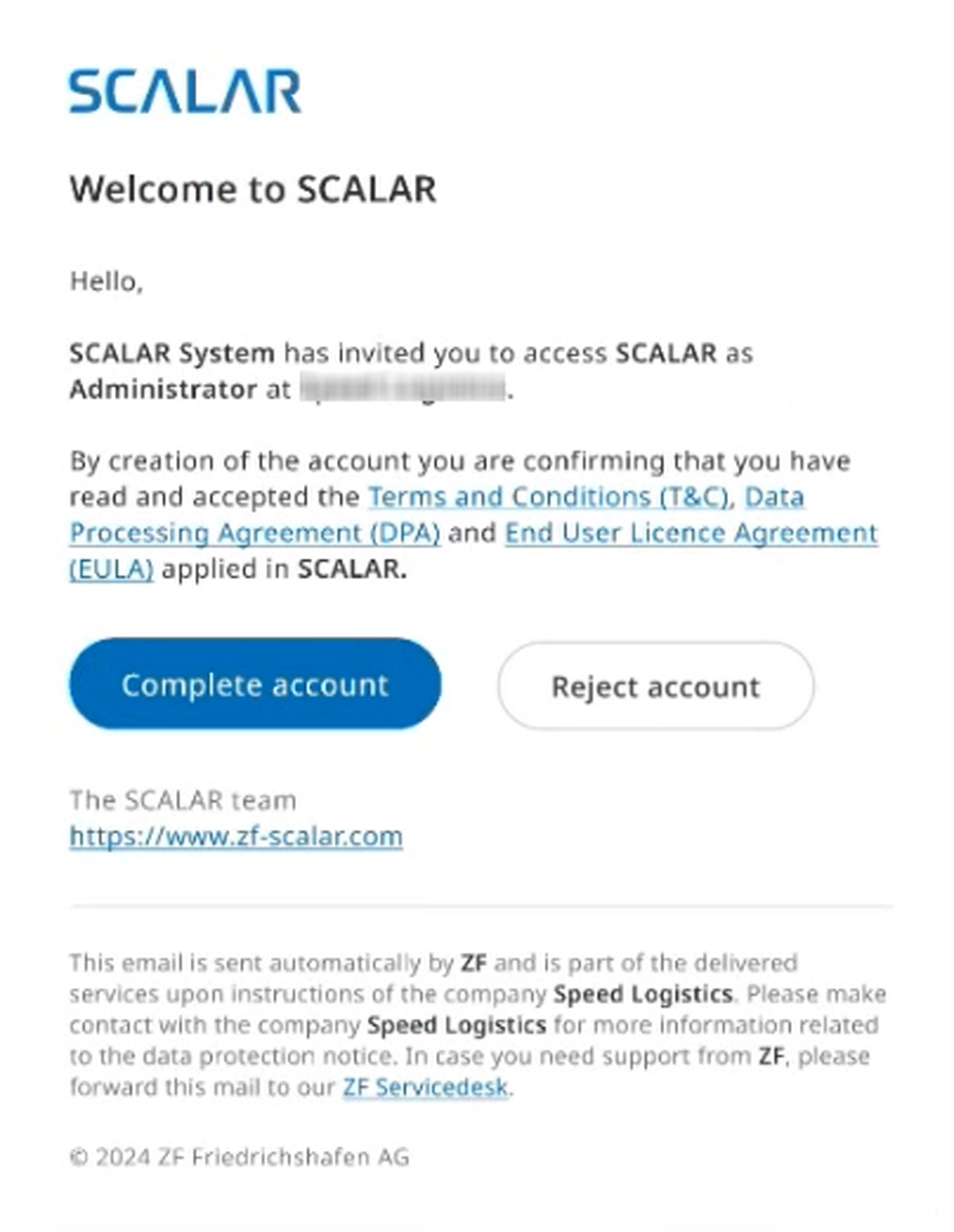
  1. Click Go To SCALAR from the Welcome email page. You are directed to the Welcome page.
  2. Click Complete account.
  3. NOTE:

    You can click Reject account if you do not want to proceed with account activation.

    The Create an account page is displayed.

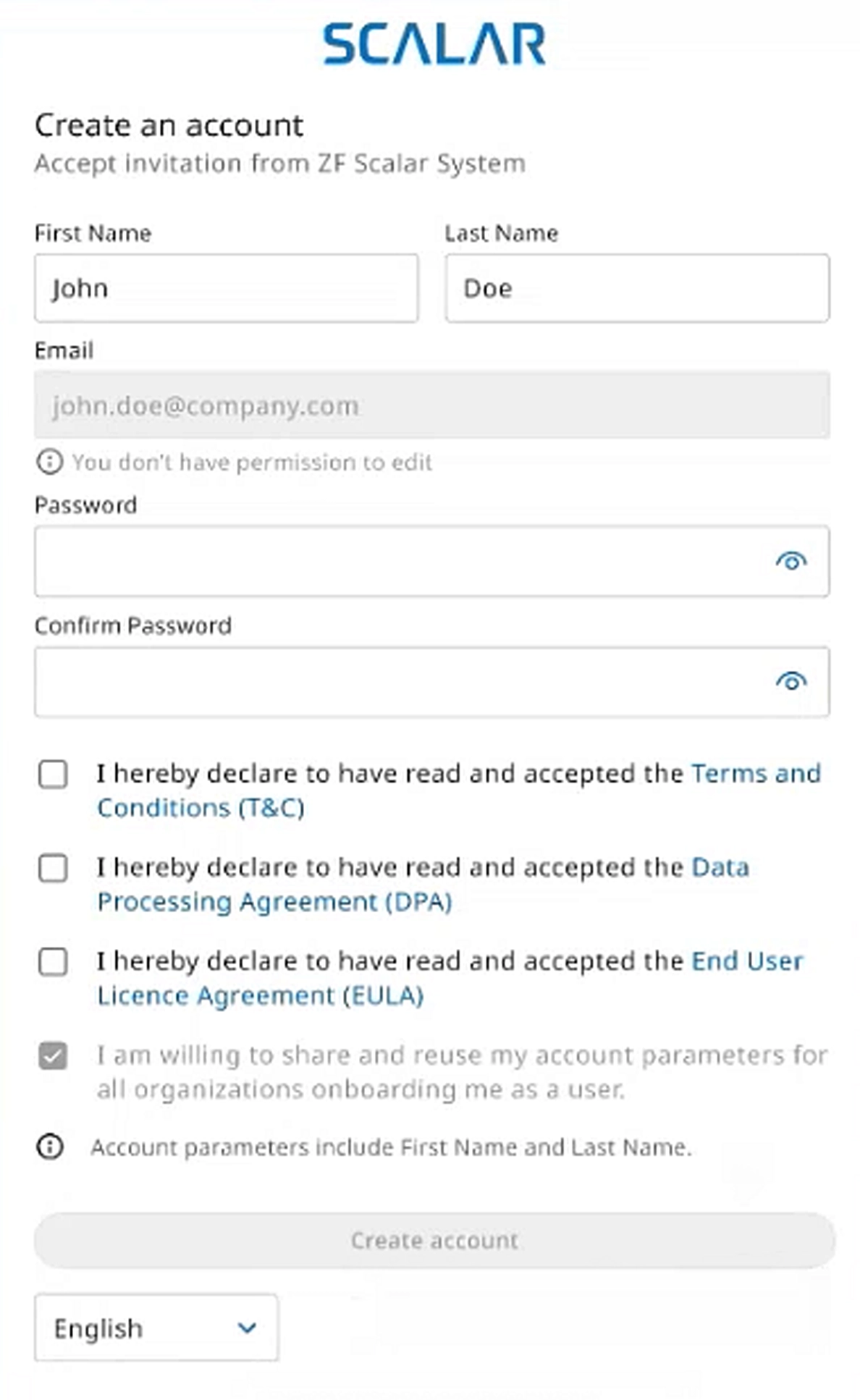
  4. Enter your first name and last name and set your password.
  5. Read and accept the T&C, DPA, and EULA policies by selecting the checkboxes.
  6. Click Create account. An acknowledgment message is displayed confirming that the account is created.
  7. Click Return to Sign-in and enter your credentials to sign in. You can now access the SCALAR platform.
For new users (SSO login) #

You will receive a Welcome email to activate the account.

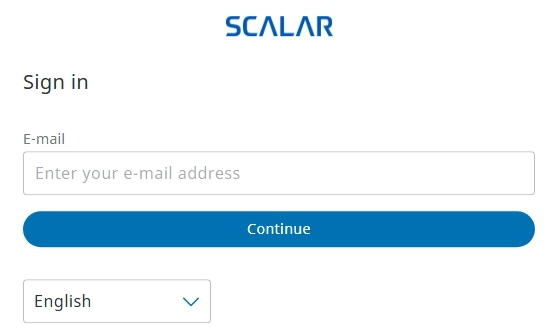
  1. Click Go To SCALAR from the Welcome email page. The Sign in page is displayed.
  2. Enter your email in the E-mail box, and then click Continue.
  3. After authentication, the Accept the policies to proceed dialog is displayed.
  4. Read and accept the T&C, DPA, and EULA policies by selecting the checkboxes, and then click Accept. You can now access the SCALAR platform.
  5. NOTE:
    • After selecting the checkboxes for the applicable policies, the Accept button is enabled.
    • The account owner will be the first user who will be on-boarded with password login type after which they will be configuring SSO logins. SSO login will hence be applicable for users other than the account owner.
Sign in through SSO or password #

Users for whom both SSO and password login are enabled, they can select either option to proceed. This image shows the Welcome page for both SSO and Password login users.
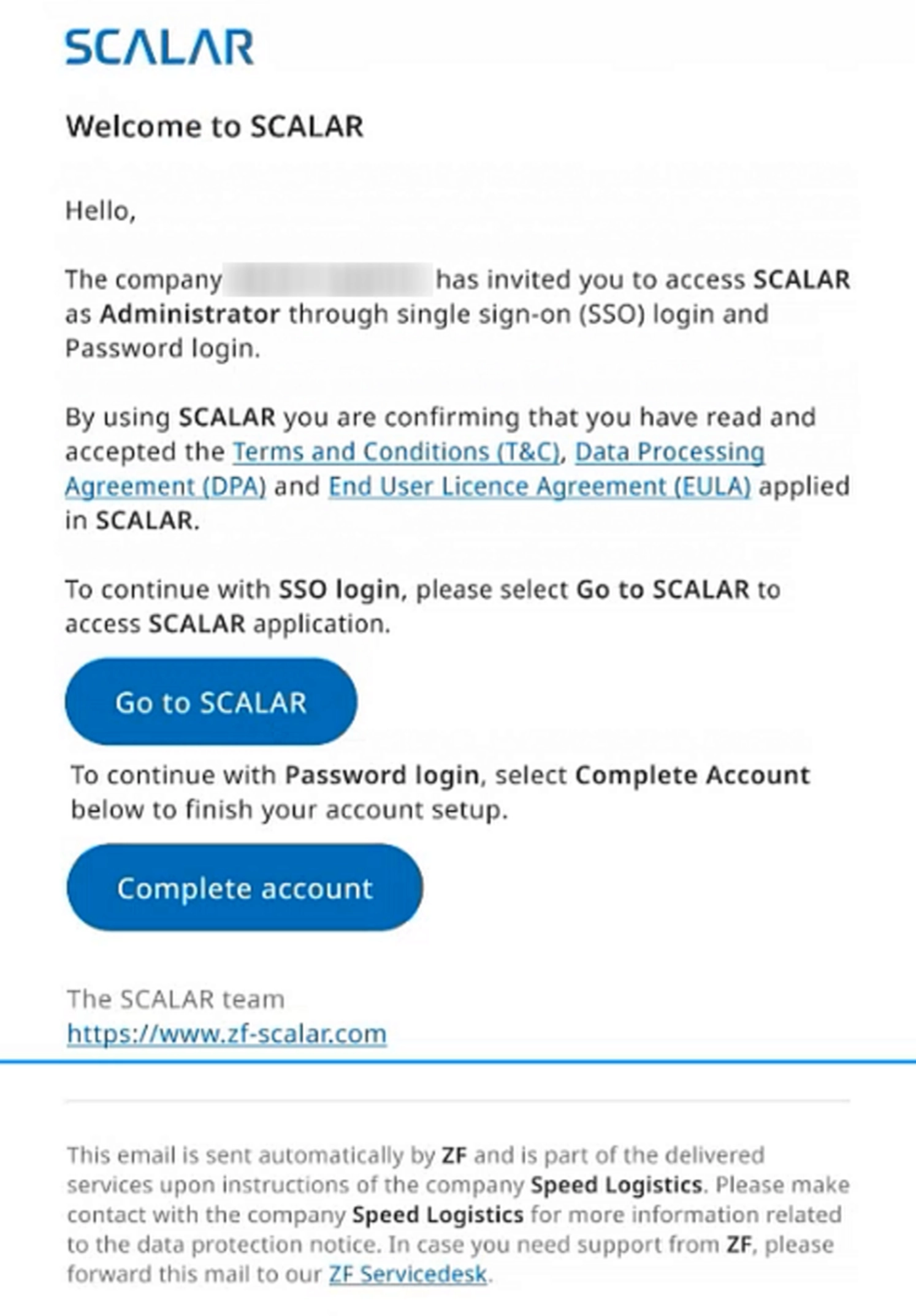
  1. Do one of the following: click Go to SCALAR (for SSO login) or Complete account (for password login). While signing in, the Accept the policies to proceed dialog will be displayed.
  2. Read the T&C, DPA, and EULA policies by selecting the checkboxes, and then click Accept to access the SCALAR platform.

Account ownership transfer #

If an existing user transfers account ownership, they will be unassigned from the role and their access permission will be modified.

The user to whom the ownership is transferred will receive an email notifying them of the new role, and they will be required to provide consent for T&C and DPA while signing in.
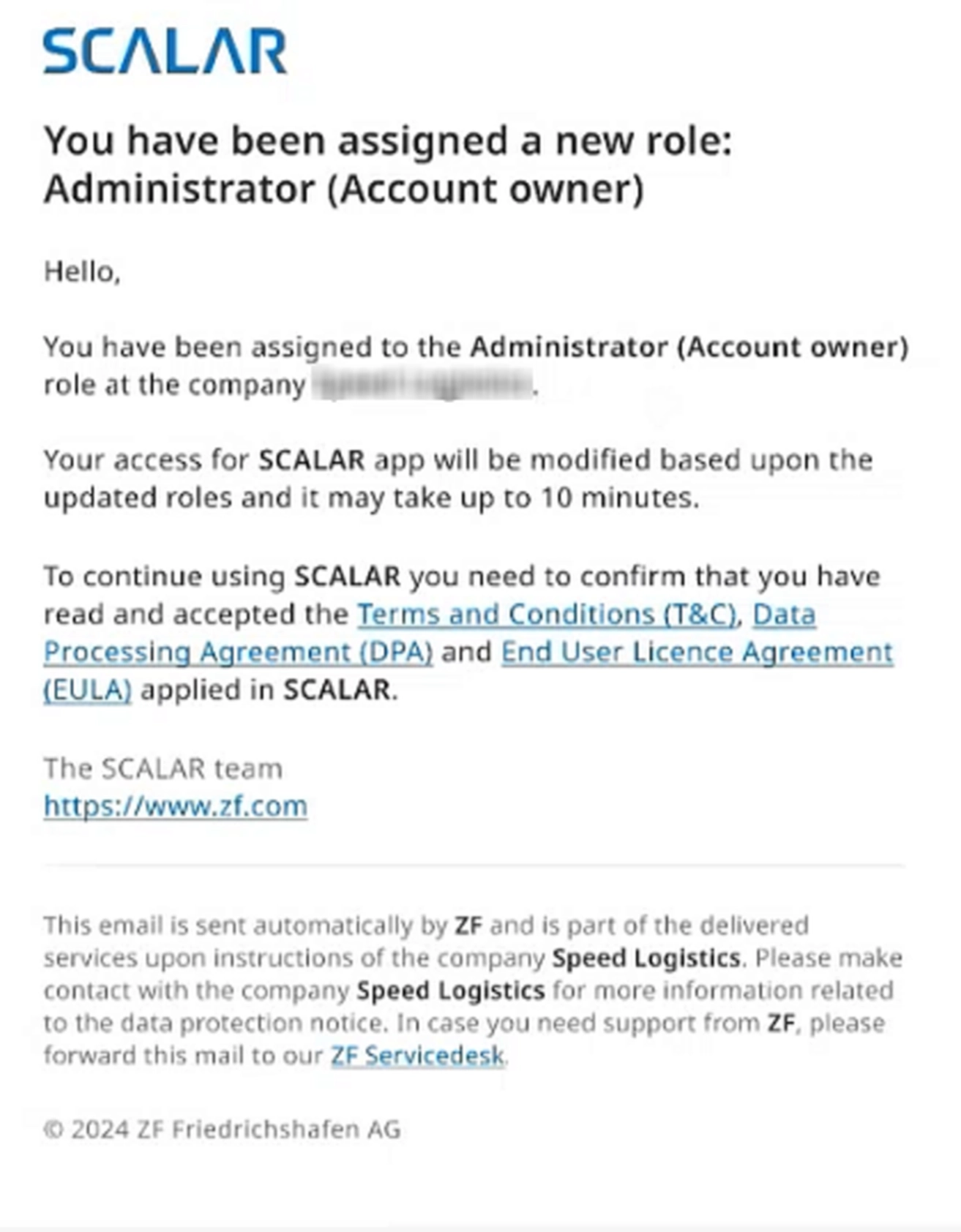
NOTE:

The new account owner has already accepted EULA as a regular user earlier; hence, the checkbox is selected and appears grayed.
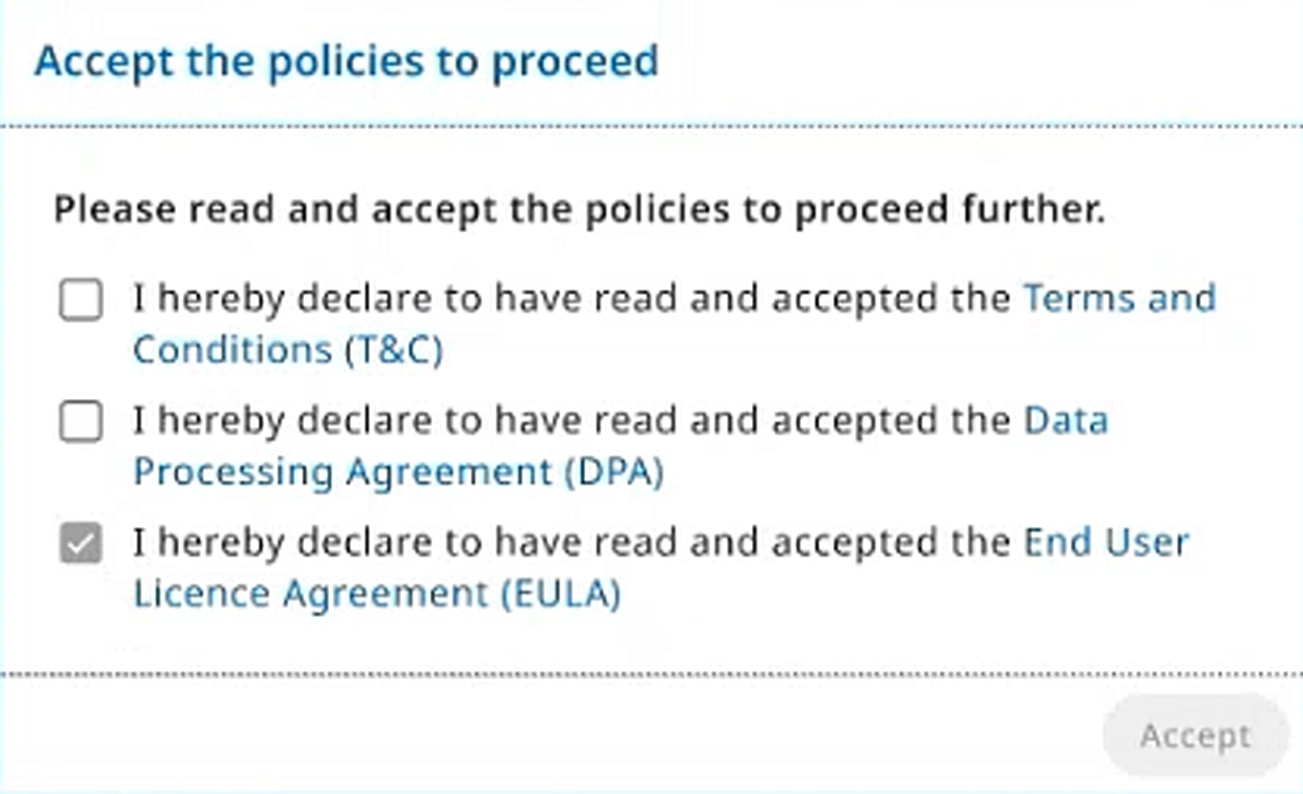
Consent from a driver user #

Drivers will be required to accept only EULA.

NOTE:

If a driver is invited both as a user and as a driver, the content and link to EULA will be different.

The driver user is presented with the Welcome page.
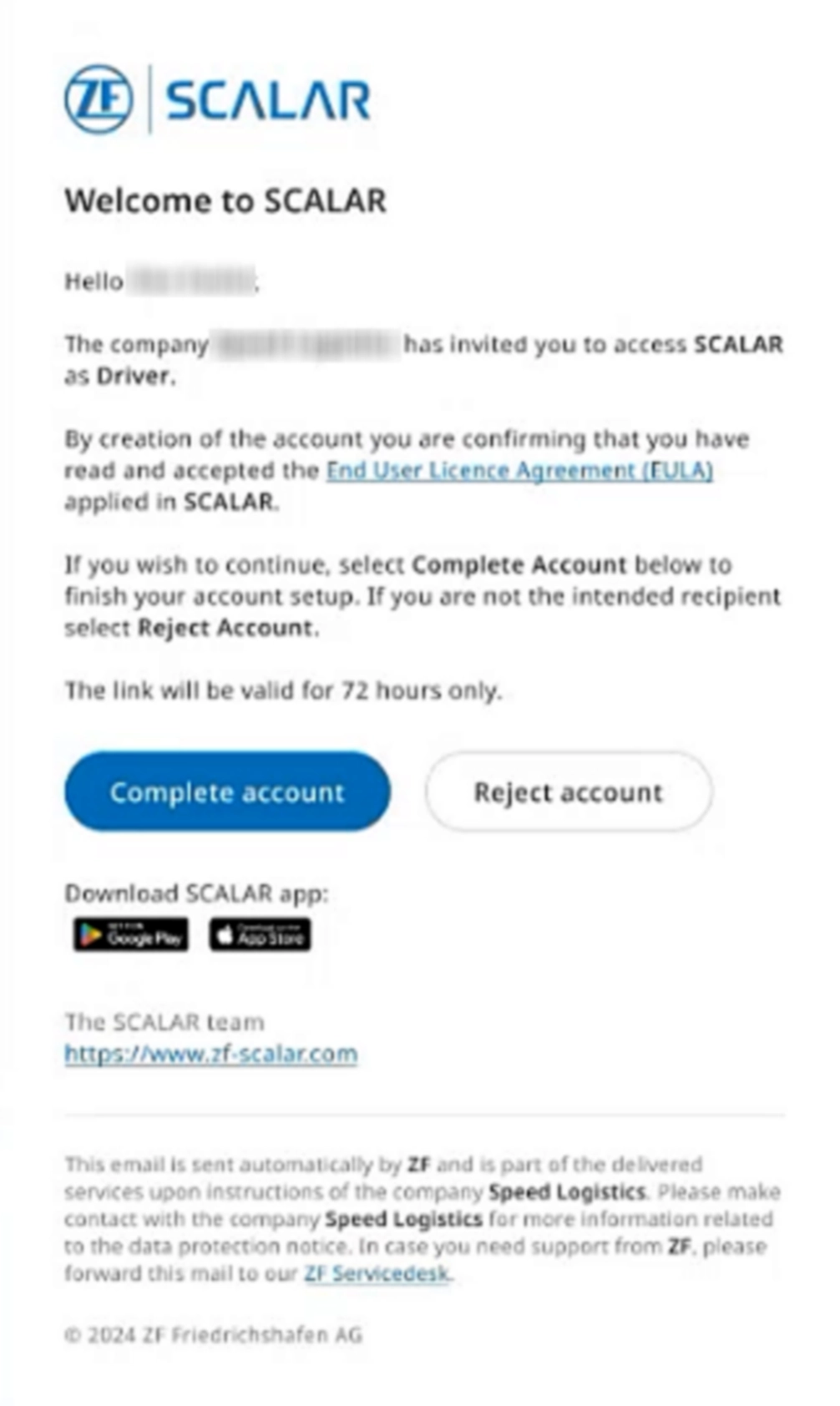
The driver must click Complete account. The Create an account page is displayed wherein they are required to read through and accept EULA.
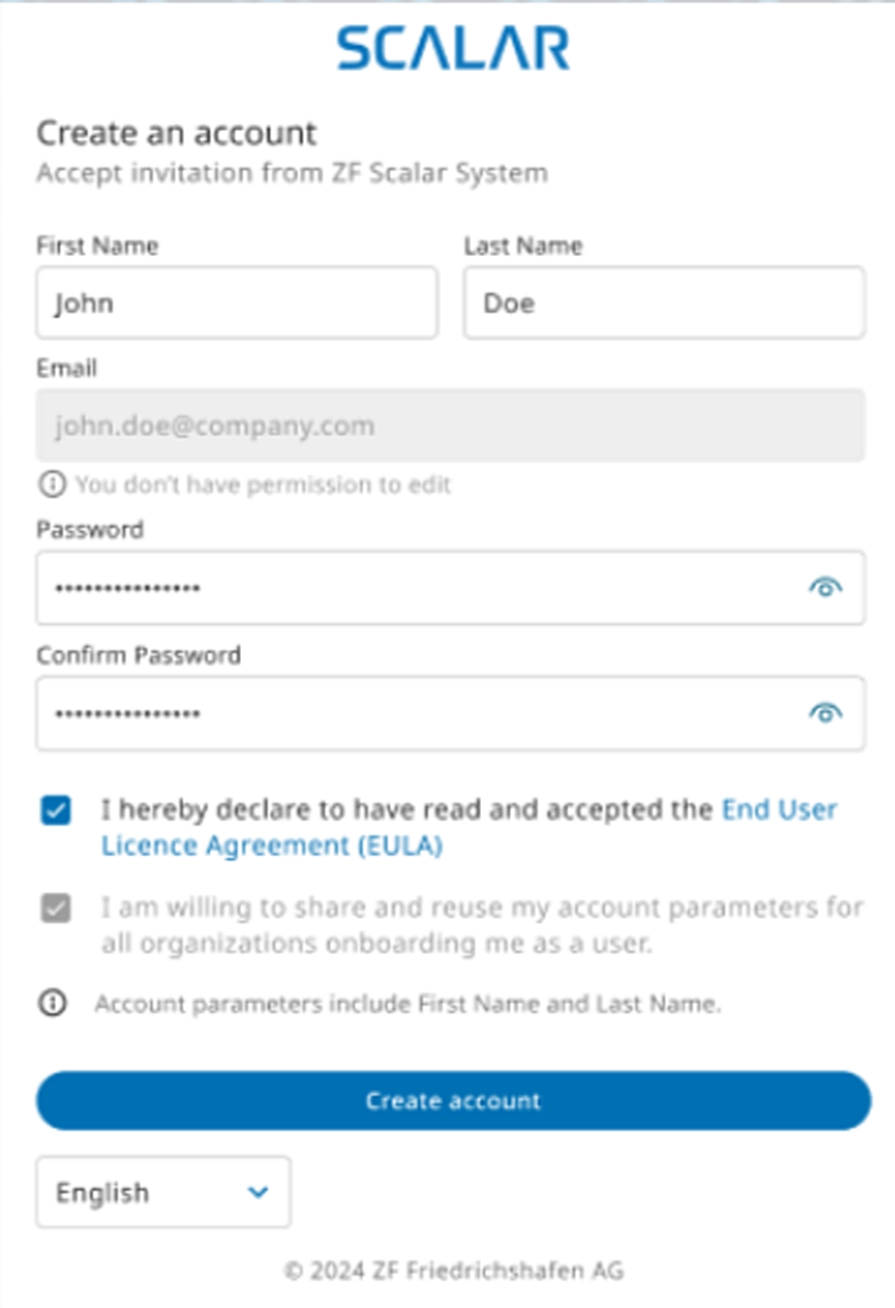

They must select the I hereby declare to have read and accepted the End User Licence Agreement (EULA) checkbox, and then click Create account. The account is created.

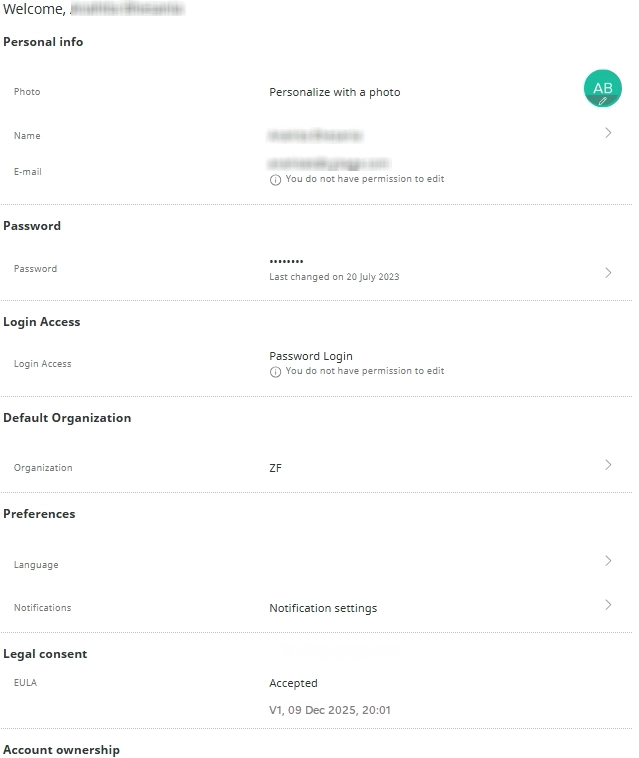
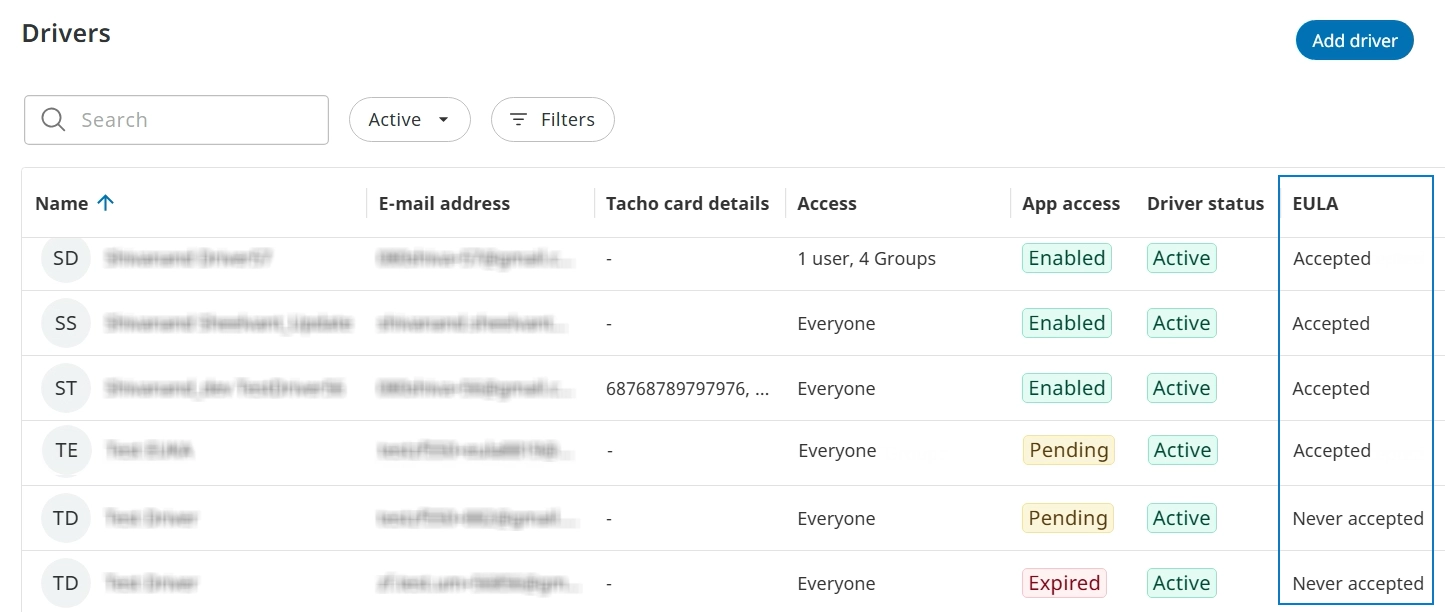
EULA consent status: The status for EULA are as follows: Accepted and Never accepted and will be reflected on the User management, Audit log, and Account pages.

Rejected and Expired statuses: The EULA consent status is shown as ‘Never accepted’ in case of the following scenarios:

  • If a user clicks Reject account and does not activate their account
  • If a new user does not respond within 72 hours after being on-boarded, the app access status will change to ‘Expired’ and the EULA consent status will be shown as “Never accepted”

This is a representative image of the account page.
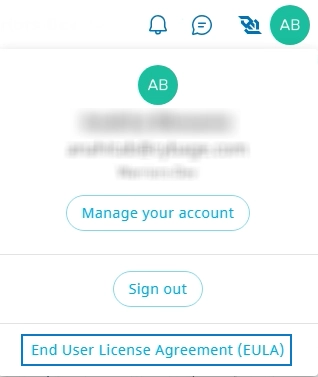
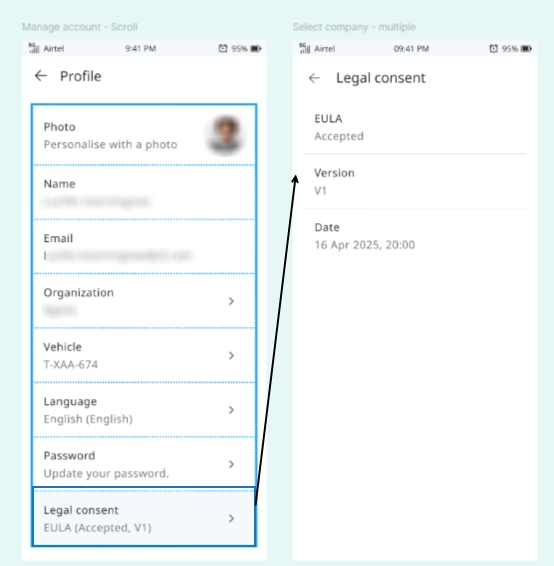
The policy link is also included in the on-boarding emails and in your profile section, below the sign out option.
This is a representative image of the legal consent provided by a driver on the SCALAR Cargo app.
This image depicts the consent status on the Drivers page, which is visible to the administrator.
Give us some feedback

Was this article useful?

What are we doing well? (0/1000)

Character limit reached

Feedback cannot be empty.

If you need help from Support, you can submit your query at zf-scalar-servicedesk@zf.com.

Thanks for your feedback!

Log in to leave a feedback

Or

Table of Contents
  • SCALAR End User Agreement (EULA) and consent overview
  • Provide consent
    • For existing users
    • For new users (Password login)
    • For new users (SSO login)
    • Sign in through SSO or password
    • Account ownership transfer
    • Consent from a driver user
ZF

SCALAR is ZF’s pioneering Fleet Orchestration Platform (FOP). ZF is a global technology company supplying systems for passenger cars, commercial vehicles and industrial technology, enabling the next generation of mobility.

More about ZF

Articles

User documentation
Hardware documentation
Developer documentation

Get in touch

Join our team
Get support
FAQ
SCALAR developers

Cookie Settings

Imprint

Data Protection

© ZF CV Systems Global GmbH

Search

    EMEA

    Americas

    APAC

    India

    Browse Articles

    User Documentation
    Hardware Documentation
    Developer Documentation

    Get Support
    Login
    • [region_toggles layout="vertical"] [custom_flag_menu_script]