


In the Map module, on the Assets tab, dispatchers can view asset coupling and decoupling information—vehicles coupled (or decoupled) with trailers. This can enable them to make informed decisions and initiate specific actions to manage operations efficiently, minimize delays, and ensure smooth fleet coordination.
Coupling and decoupling actions are performed by drivers through the SCALAR Cargo app, which are reflected in the Map module.
Key points #
- Drivers can couple and decouple trailers for their assigned vehicles through the Connect Trailer and Disconnect Trailer activities (workflow mode) and through the Asset coupling feature.
- Two or more trailers can be coupled through the Asset coupling feature—depending on the maximum number of trailers configured for an organization. However, only one trailer at a time can be coupled to an asset through a workflow.
- Dispatchers can visualize the following:
- which vehicle is coupled with which trailer in real time
- historical data about the coupling/decoupling information
- make use of the visual indicators when the coupled trailer deviates from the planned trailer
- Once the vehicle and trailer are coupled, they constitute a single asset— it merges the resources into a single truck/trailer(s) combination record. However, in the Map view, on the asset information pane, they can switch between the assets to view information at both the main asset and trailer level.
Scenarios #
Vehicle can be coupled with trailers for the following scenarios:
- Vehicle with communication unit (CU) coupled with a trailer with CU (the trailer is created in SCALAR with the CU paired)
- Vehicle with CU is coupled with trailer(s) without CU (the trailer is created in SCALAR without the CU paired)
- Vehicle with CU is coupled with an unknown trailer(s) (the trailer in not created in SCALAR, for example, in case of a foreign or rented trailer)
View coupling/decoupling information #
In the Map module > on the Assets tab > select the required asset from the list. The asset’s current location, route, and coupling state are displayed on the asset information pane.
- Asset types are represented through different icons
- Use the selector to switch between linked assets
- Coupled assets appear as linked icons on the map
- Selecting an asset highlights all the trailers currently coupled to it
- The tick mark next to the resource indicates the currently active asset
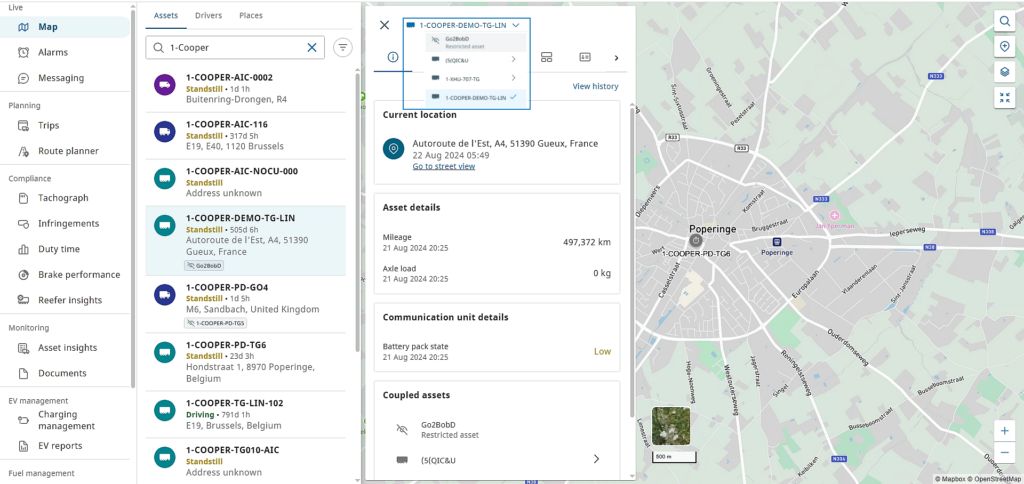
When you are not assigned to a trailer that is coupled to an asset, you will not be able to see the information of this trailer. It will be displayed as ‘Restricted asset’.
View activities #
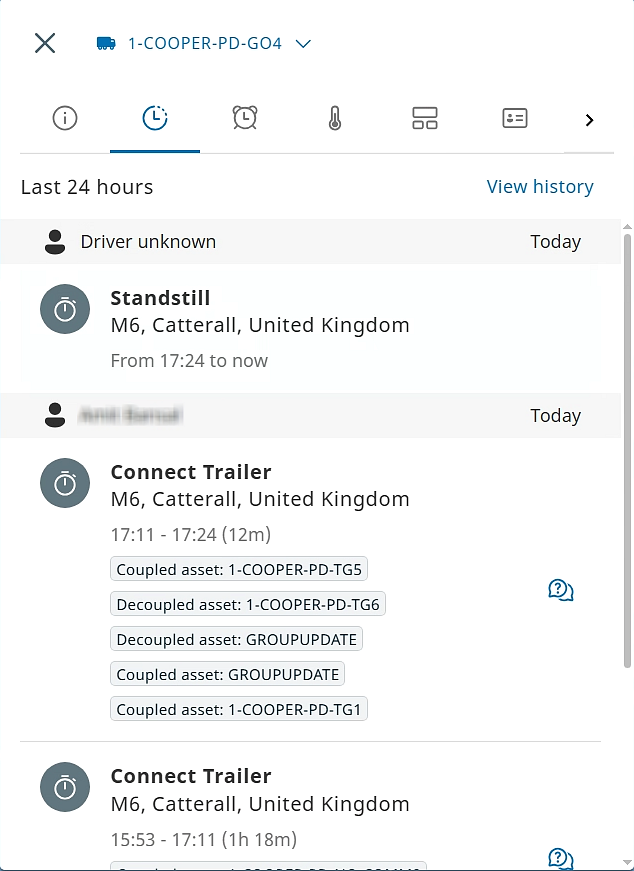
On the Activities tab, you can view the coupling/decoupling activity information with the date and timestamp.
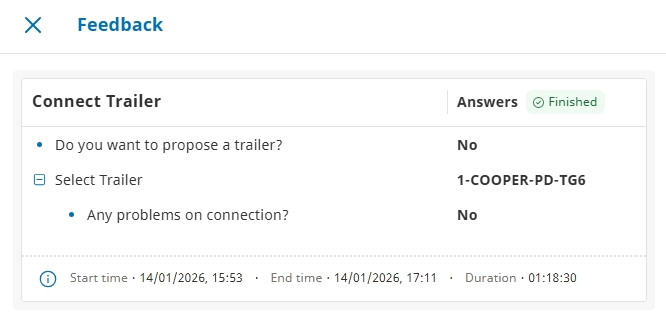
Click Message ( ) to view feedback submitted by a driver. This is a representative image of the driver’s responses to the workflow questions.
View historical records for asset coupling/decoupling #
On the asset information pane, click View history. The asset information page is displayed. Click the Activity tab. The activity history for the selected period is listed, which includes information on coupled assets (assets that were linked during the activity) and the data source.
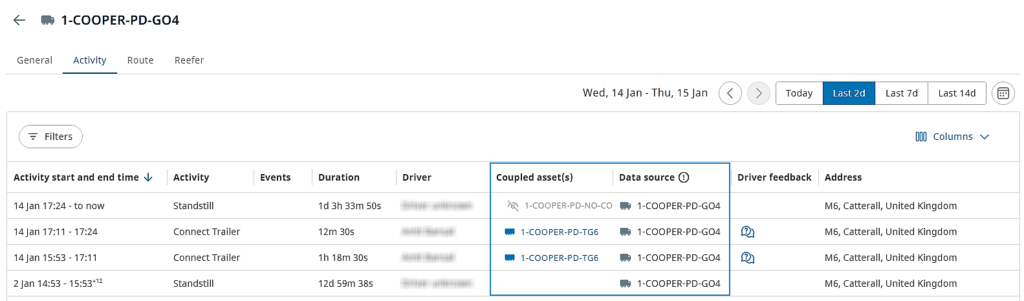
- The data source indicates which communication unit was used to record information about the activities.
- For a coupled asset combination, where only the primary asset has a CU, the data source will report the CU information of this primary asset.
Filter assets by coupling state #
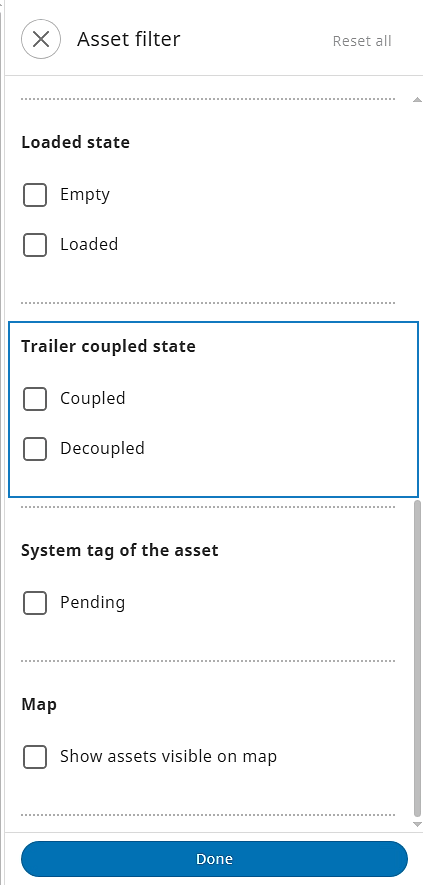
You can filter assets by the trailer coupled state.
On the Map page > on the Assets tab, click Filter ( ). The Asset filter pane is displayed. Scroll down to view the Trailer coupled state section and select or clear the required checkboxes. The assets will be filtered based on the filter criteria.
Asset decoupling #
Assets can be decoupled using the SCALAR Cargo app.
- Decoupled assets no longer appear linked on the map.
- Decoupling events are recorded in the asset’s activity history.


